View store information
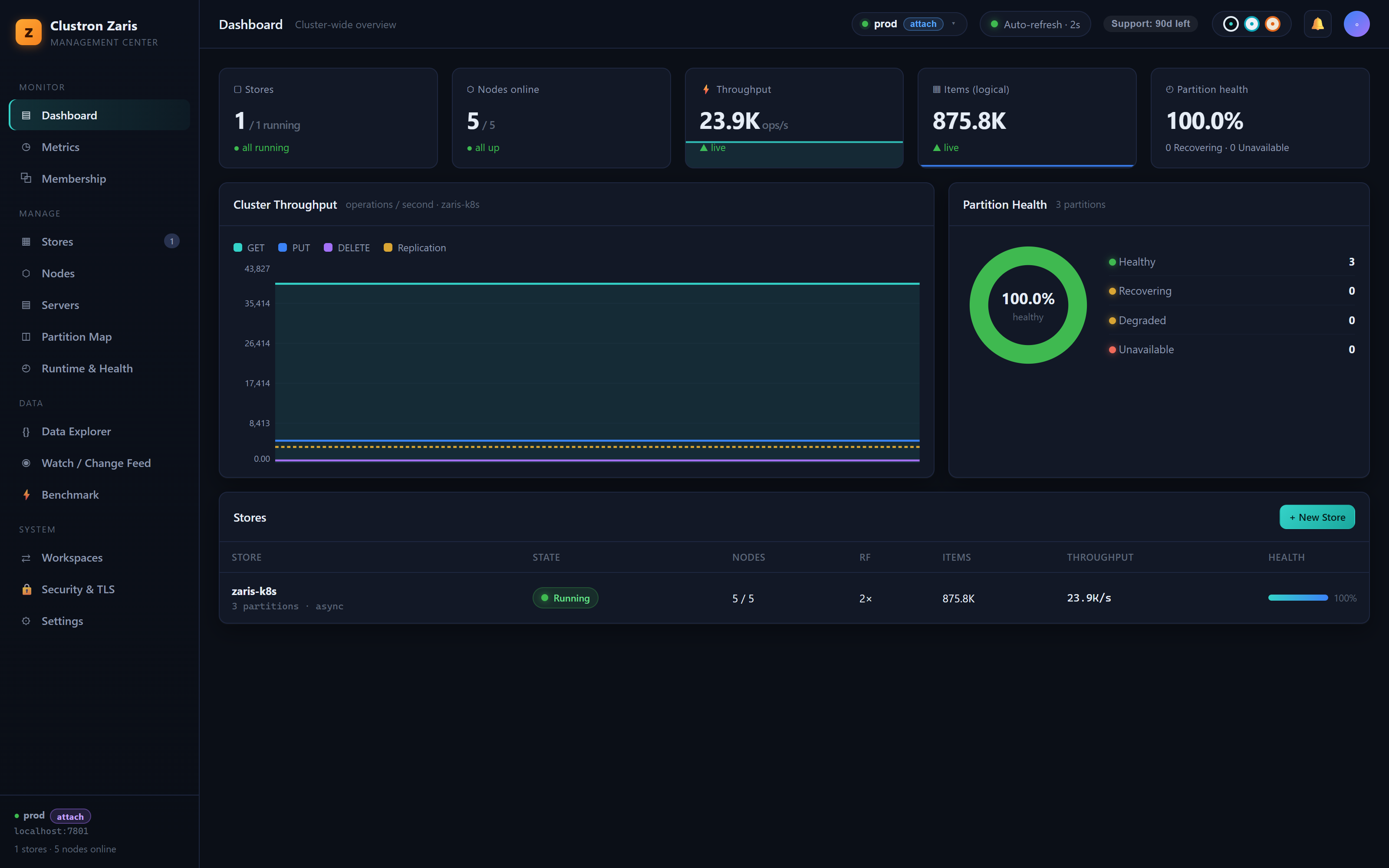
Check whether a store is running, how many of its nodes are up, and which servers participate — the view you reach for to confirm a store is healthy after starting it and to diagnose why clients cannot connect. You can do this with the PowerShell Get-ZrStore cmdlet or from the Web Console.
Activate a workspace first (see Connect to a cluster).
View store status
- PowerShell
- Web Console
Get-ZrStore lists all stores, or reports one store when you pass -Name.
Get-ZrStore [-Name <StoreName>]
To list every store in the cluster:
Get-ZrStore
To report a single store:
Get-ZrStore -Name orders-cache
- Open the Web Console and sign in to your workspace.
- On the Stores list, click the store (for example
orders-cache) to open its Overview. - The Overview shows the store's status, uptime, node count, and per-node health — the console equivalent of
Get-ZrStore.
Read the output
For each store, the cmdlet renders a summary rather than raw configuration, so it is easy to scan. It shows the store name, the active workspace and (for a multi-manager workspace) the manager count, the overall status, uptime, and a per-node list with a running/stopped indicator.
Store   : TestStore
Cluster : prod · supervisor
Managers: 3
Status  : Running
Uptime  : 2h 15m  (since 2026-07-30 13:10:00)

Nodes (3)
─────────────────────────────────────────
  ● 10.0.0.11-n0   10.0.0.11:7861   Running   up 2h 15m
  ● 10.0.0.12-n0   10.0.0.12:7861   Running   up 2h 15m
  ● 10.0.0.13-n0   10.0.0.13:7861   Running   up 2h 15m
─────────────────────────────────────────
  Running: 3   Stopped: 0
The output tells you the store's health at a glance:
- Status — the overall state, derived from the individual node states (see the table below).
- Uptime — how long the cluster has been formed, with the formation time.
- Nodes (N) — the node list: a filled bullet (
●) for a running node, an open bullet (○) for one that is stopped, each with its client address and status. - Running / Stopped — the tally beneath the list summarizes how many nodes are up versus down.
A healthy, fully started store shows Status: Running with the running tally equal to the node count and Stopped: 0.
The status is calculated from the node states:
| Node states | Status |
|---|---|
| No nodes defined | NoInstances |
| All nodes running | Running |
| All nodes stopped | Stopped |
| Some running, some stopped | Partial |
A Partial status means at least one node failed to start or has stopped. Use Watch-ZrStoreMetrics and the node's logs to find which one, then start it with Start-ZrStore -Name <store> -InstanceName <node>.
When to use this command
Reach for Get-ZrStore to confirm a store is running after Start-ZrStore, to verify the node and server counts match what you created, and to rule out a stopped store when a client cannot connect.
Troubleshoot
| Symptom | Cause | Fix |
|---|---|---|
| "Store not found" | Wrong name, or the active workspace targets the wrong managers | Run Get-ZrStore with no name to list stores; confirm the active workspace with Get-ZrWorkspace |
Status: Stopped | The store was never started or was stopped | Run Start-ZrStore -Name <store> |
Status: Partial | One or more nodes are down | Identify the stopped node and start it individually |
| "No active Zaris manager connection" | No workspace is active | Activate a workspace, or pass -Managers |
Next steps
- Multi-node configuration — plan how nodes map to servers.
- Monitoring and metrics — watch live per-node activity.
- Get-ZrStore reference — full field and parameter details.